
How Can We Help?
Account Setup Guide
Getting started with Wayroo is a quick and easy process. If you have any questions, contact your organization’s support team.
Step 1: Download the app
The Wayroo app is available for download on your mobile device.


Step 2: Create You Account
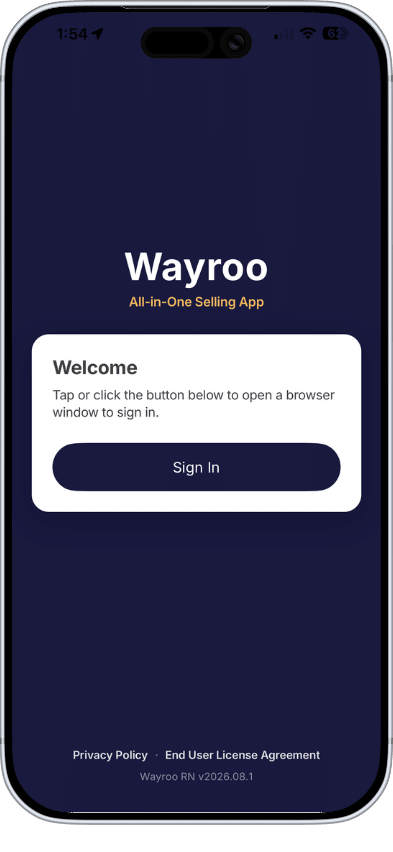
Once the app is installed to your device, open the Wayroo app
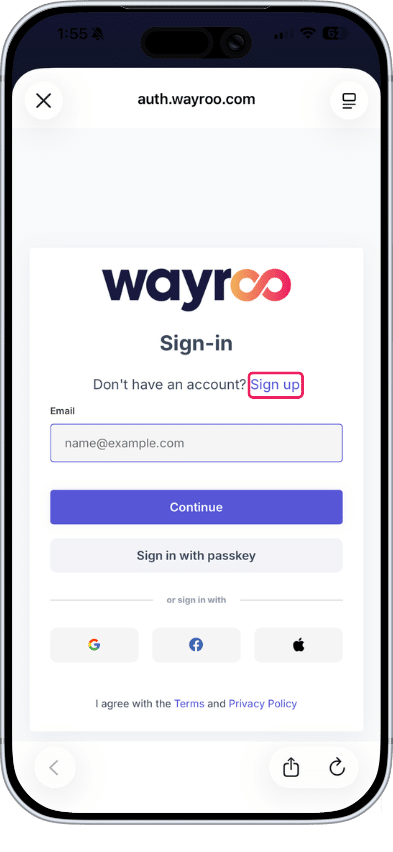
- On the Sign-in screen, tap ‘Sign Up’ located above the email field next to ‘Don’t have an account?’
Note: If this is your first time signing up, leave the email field blank and click the Sign Up button on the right side of the screen (don’t click Continue). You’ll only enter your email once you already have an account.
2. Enter
- Your First Name
- Your Email Address
‼️ Important note: You must sign up using the same email address you use to log into your Back Office.
3. Tap Submit.
Step 3: Verify Your Email Address
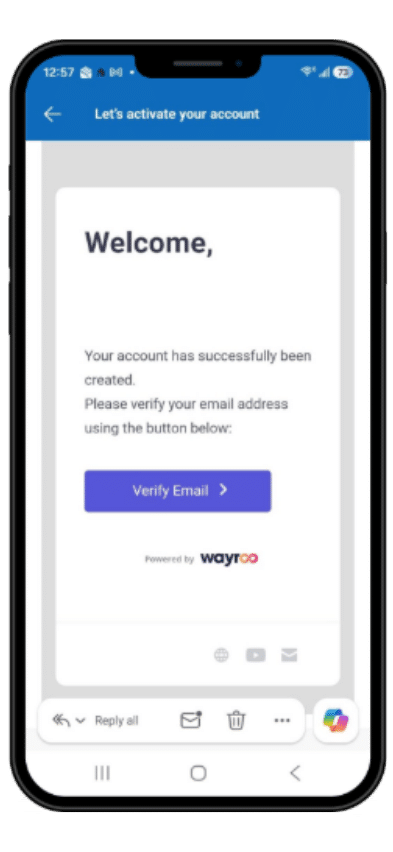
After submitting your information, you’ll see a confirmation message indicating that a verification email has been sent.
- Open your email inbox.
- Locate the email verification message from Wayroo. (noreply@wayroo.com)
- Click Verify Email.
Step 4: Create Your Password
After clicking the verification link, a new browser window will open.
- Create a password for your Wayroo account.
- This password can be:
a. The same password you use for your Jordan Essentials Back Office
b. A completely different password - Submit your new password.
After a few seconds, you’ll be redirected to the Wayroo Dashboard.
Notes:
- Your account information is synced with your Direct Sales company, with the exception of your password.
- While your email address is the same, resetting your password for the app will NOT reset your password for your Back Office.
- You can either use the same password as your Back Office password, or create a new one for the app.
Step 5: Access the App
If you’re on a computer:
You’re all set. The dashboard that opens is your Wayroo portal for web.
If you’re on a mobile device:
The verification process will open the dashboard in your mobile web browser. Once you see the
dashboard:
- Close the browser window.
- Return to the Wayroo app you downloaded earlier.
- Log in using:
a. The email address you registered with
b. The password you just create
You are now successfully logged into your Wayroo Account
What Happens Next?
After you create your Wayroo account and log in for the first time, your next step depends on how your Direct Selling Organization has configured Wayroo for your field.
Some users may need to set up merchant processing through ProPay before they can use Wayroo’s selling tools. ProPay is Wayroo’s integrated payments partner that allowing you to securely accept credit and debit card payments through the app.
Do I Need to Set Up Merchant Processing?
After you log in for the first time, what you see next will indicate whether merchant processing is required, optional, or unavailable for your organization.
If You See the Welcome Screen
If you land on a Welcome screen immediately after logging in, your Direct Selling Organization requires you to set up a ProPay merchant account before you can begin using Wayroo’s selling tools.
Next step: Set Up Your Merchant Account With Selling Tools
If You Land on the Dashboard
If you land directly on your Dashboard, merchant processing is either optional or unavailable for your field.
Optional Merchant Processing
If you see a “Selling Tools” banner or button in the main menu, merchant processing is available but optional.
You can begin using Wayroo’s base features right away. When you’re ready to access the selling tools and set up your ProPay merchant account, select the “Selling Tools” banner or button in the main menu.
Next step: Set Up Your Merchant Account with Selling Tools
Merchant Processing Not Available
If you do not see a “Selling Tools” banner or button, your Direct Selling Organization has not made merchant processing or selling tools available to your field.
Your onboarding is complete, and you can begin using Wayroo’s base features, including your Dashboard, where you can view key Back Office metrics and business insights, to support your business.